

Getting Started
Type your query in the search bar. You can ask a question or enter keywords - Omni handles both.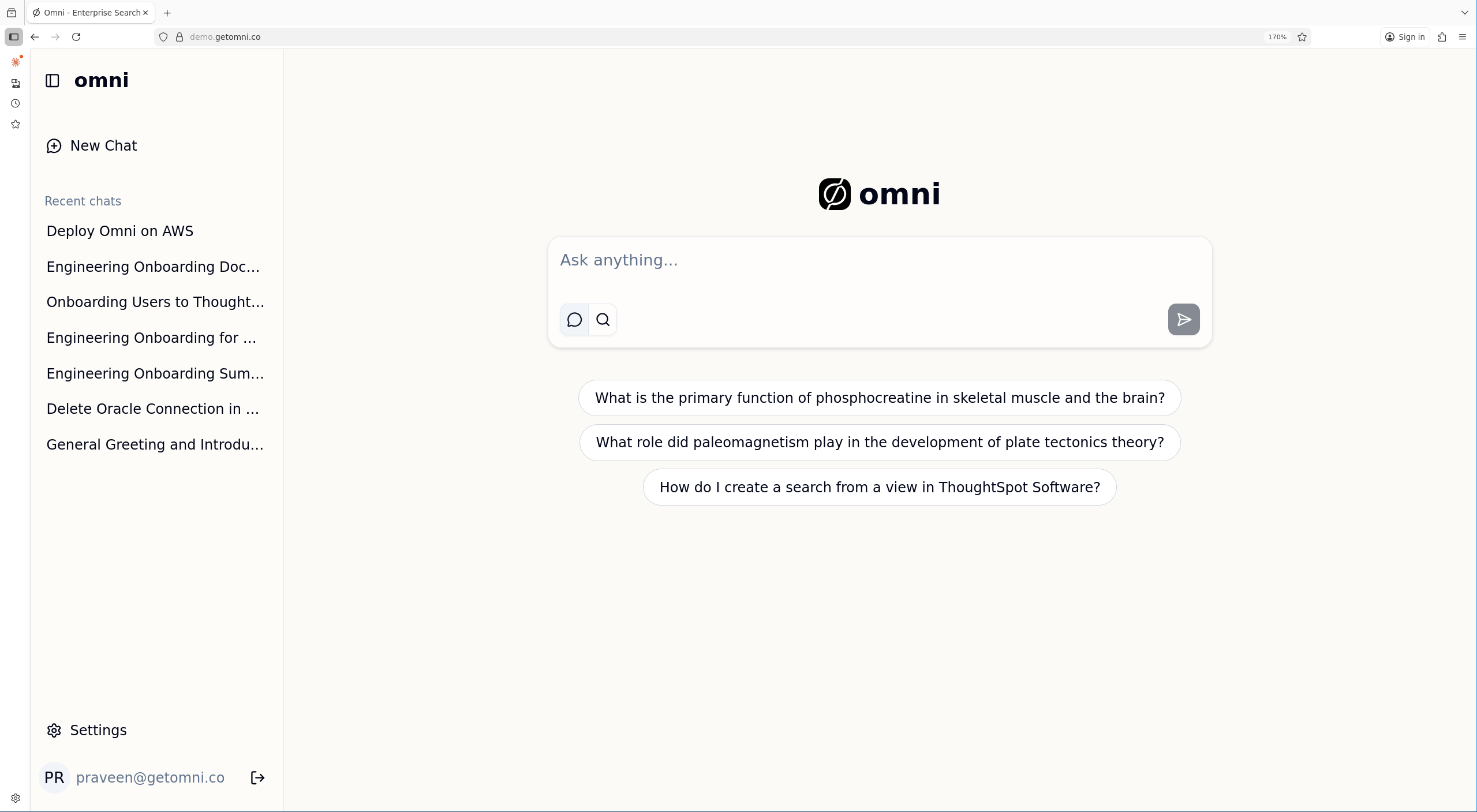
The Omni home screen with search bar and sample questions
Search Results
After submitting a query in Search mode, you’ll see a list of matching documents ranked by relevance. Click any result to open the original document.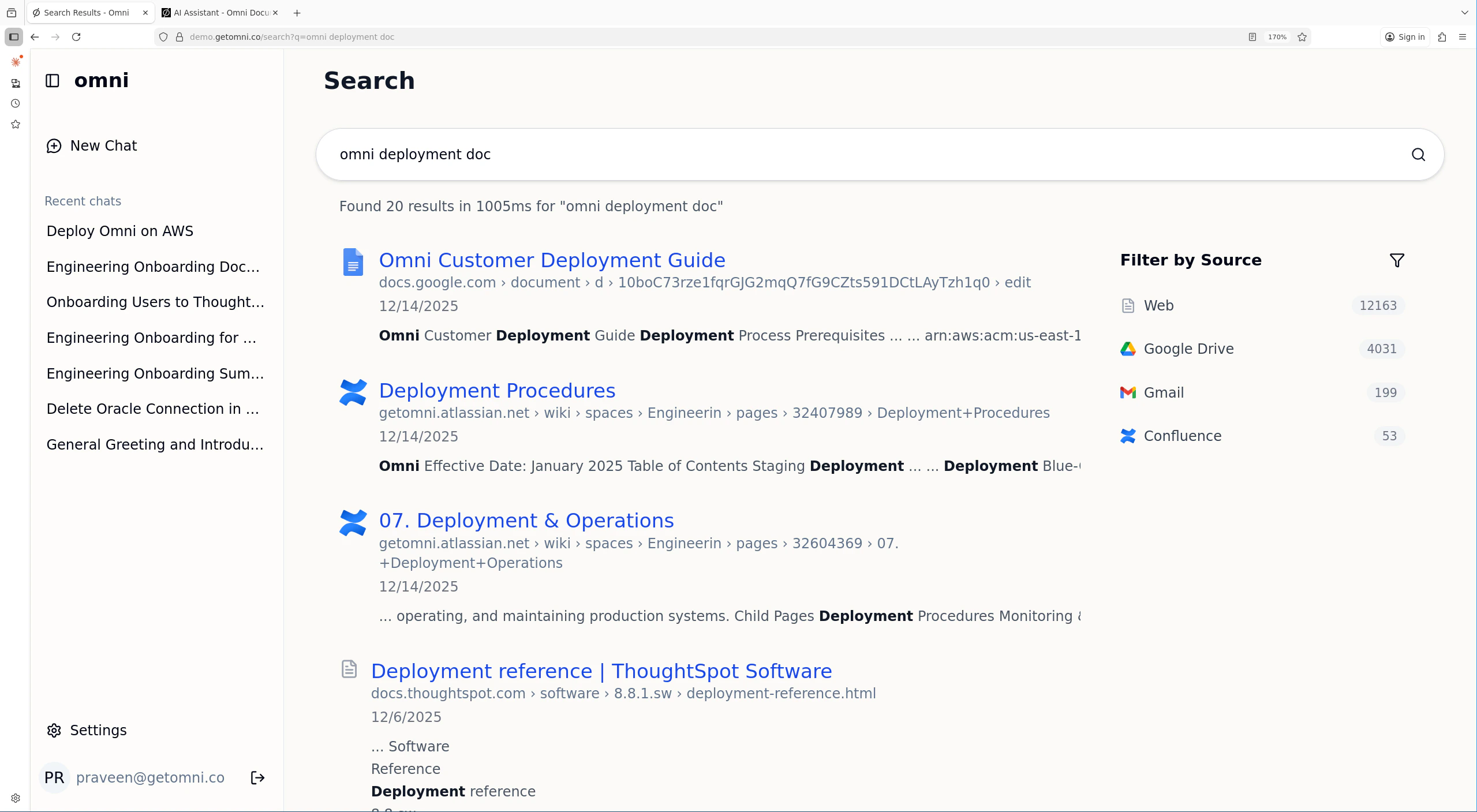
Search results showing documents from across your connected sources
Pagination
Search results are paginated for large result sets. Use the page navigation at the bottom of the results to browse through all matches.Search Operators
You can narrow a query inline using the following operators:
Operators can be combined — for example,
onboarding in:google type:docx after:2025-09-01.
Date operators are interpreted in your saved timezone from Settings → Profile. If you have not saved a timezone, Omni falls back to UTC.
Connectors can also add source-specific operators when they register with Omni. Examples include channel: for Slack, folder: or subject: for IMAP, project: / status: / assignee: for Jira and GitHub-style sources, and tag: / correspondent: for document-management connectors. These operators are available in both Search and Chat once the relevant connector is running.
Filters
Filters in the search UI (source, type, author, date range) apply the same operators as above and are available from both Search and Chat modes.Multilingual Search
The search index uses ASCII folding and language-agnostic tokenization, so queries against documents in French, German, Spanish, and other non-English languages work without any extra configuration.Tips
- Be specific: “Engineering onboarding checklist” works better than “onboarding”
- Ask naturally: The AI understands conversational questions
- Use operators: Combine
in:,type:, andafter:to narrow results quickly - Use recent chats: Continue previous conversations from the sidebar
- Recency matters: More recent documents are given a ranking boost, so up-to-date content surfaces first