

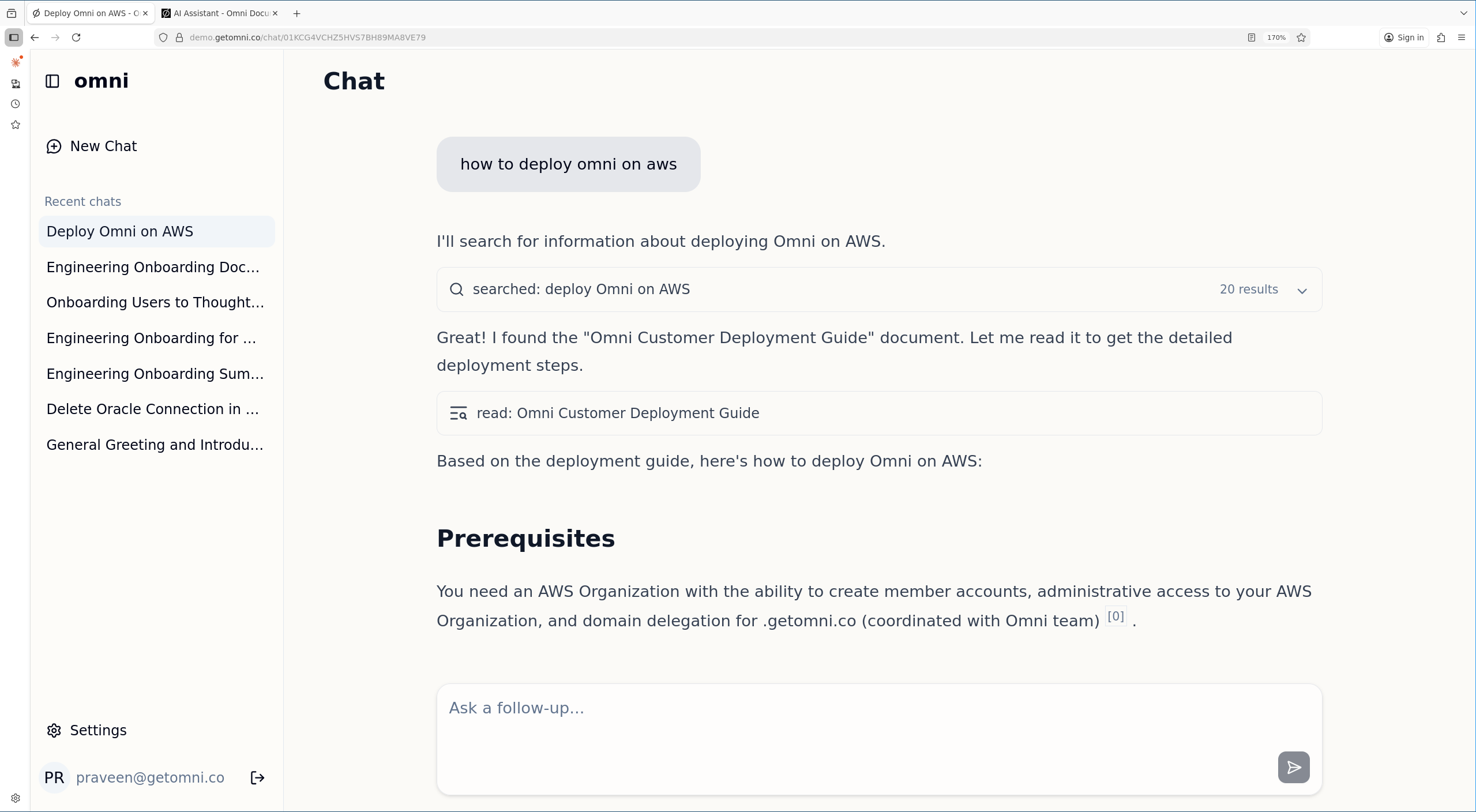
How It Works
In Chat mode, Omni’s AI assistant:- Searches across all your connected sources
- Synthesizes information into a coherent answer
- Provides citations so you can verify the source
Conversations
Each chat is saved in your Recent chats sidebar. Click any previous conversation to continue where you left off.Projects
Projects group related chats together with standing instructions and context documents. Every chat in a project automatically inherits the project’s instructions, and attached documents stay available as context across all of its conversations. Open Projects in the sidebar to create one, and see Projects for details.Chat History
The assistant can search your previous Omni conversations by title and message content when the answer is not available in the workplace index. It can then read a matching conversation one branch at a time. Chat history tools only expose your own chats; previous chat content is treated as context, not as instructions.Citations
Every AI response includes links to source documents with inline citation markers. Click citation chips to:- Verify the information
- Read the full context
- Access the original document in its native application
[citation:n] markers that are converted to the same inline chip format with hover excerpts and a dedicated Sources drawer.
Conversation Branching
You can edit a previous message to explore a different direction. This creates a new branch in the conversation, preserving the original thread while letting you take a different path. Use the navigation arrows on messages to switch between branches.Retry Responses
If you’re not satisfied with an AI response, click the retry button to regenerate it. The assistant will produce a new answer using the same context.Agent Tools
When you ask a question, the assistant may invoke one or more tools to gather information or take action. The current toolset is:
Any tool call that touches the outside world (running code, sending email, or a write-capable connector action) is gated by an approval prompt in the chat UI. You can approve or reject each request before it runs.
Web tools are available only after an admin configures providers in Settings → Web Providers. Web fetches are limited to public HTTP(S) URLs and respect the admin URL blocklist.
Some connector actions require your own OAuth authorization for the connected app. When that happens, Omni pauses the assistant loop and shows a Connection required card in chat. Click Connect to authorize the provider, then the assistant can continue with the action. If the admin has not configured the provider’s OAuth app yet, the card explains that setup is required first.
File Attachments
You can attach ad-hoc files directly to a chat message by clicking the attach button in the input area (or dragging a file onto the input). The assistant can read the attached file alongside indexed documents — useful for one-off questions about something that isn’t connected to Omni as a source.Attachments are stored using the same content-storage backend as indexed documents (Postgres by default, or S3 if configured). They remain available until you delete them.
Artifacts
When the assistant creates a file in the sandbox — a spreadsheet, document, PDF, or chart — it can present it to you as an artifact. Artifacts appear as chips in the chat:- Images render inline in the conversation.
- Documents and other files (PDF, Word, Excel, HTML, text) open in a resizable side pane with a type-appropriate viewer. Click the artifact chip to open or close the pane, and drag the splitter to resize it.
- Each artifact is pinned to the version that was presented, so later edits to the same file do not change what you’re viewing. The version you saw when the card was created stays available.
Document References
You can reference specific indexed documents directly in a chat message by typing@ followed by a search query. A typeahead menu shows matching documents from your connected sources — select one to inject its full content into the chat context alongside any documents the assistant retrieves on its own.
This is useful when you already know which document contains the answer and want the assistant to focus on it:
- “What does the onboarding checklist in
@employee-handbooksay about security training?” - “Summarise the budget section from
@Q3-report”
People Search
The AI assistant can look up people in your organization with thesearch_people tool. Ask about someone by name or email, or filter by job title, department, office, work country, employee type, or manager to find direct reports.
Directory fields depend on the connected sources. Connectors such as Darwinbox can provide structured profiles including job title, department, manager, office, work country, employee ID, contact number, and top department. Only active directory records are returned.
Memory
If your admin enables Memory, Omni can remember useful facts from prior chats and recall them in future conversations. Memory is scoped to your user account, and you can manage it from Settings → Memory.
Your admin sets the organization-wide maximum memory mode. You can choose a lower personal mode or delete stored memories at any time.
Skills
Skills are reusable Markdown instructions that guide the assistant through specific workflows. They ship with certain connectors (e.g. Google Drive and Gmail skills for the Google connector) and are automatically loaded when the connector is enabled. You can also create your own skills from the Skills page in the sidebar. Write instructions in Markdown, set visibility to Public to share them with your organisation, or keep them Private for personal use. Browse and clone public skills created by other users in your organisation. When the assistant encounters a relevant task, it searches available skills and applies matching ones to guide its response.Best Practices
- Ask follow-up questions - The assistant remembers context within a conversation
- Be specific - “What’s our PTO policy for employees in California?” beats “PTO policy”
- Request formats - Ask for bullet points, tables, or summaries as needed