> ## Documentation Index
> Fetch the complete documentation index at: https://docs.getomni.co/llms.txt
> Use this file to discover all available pages before exploring further.
# Search
> Find documents across all your connected sources
## Getting Started
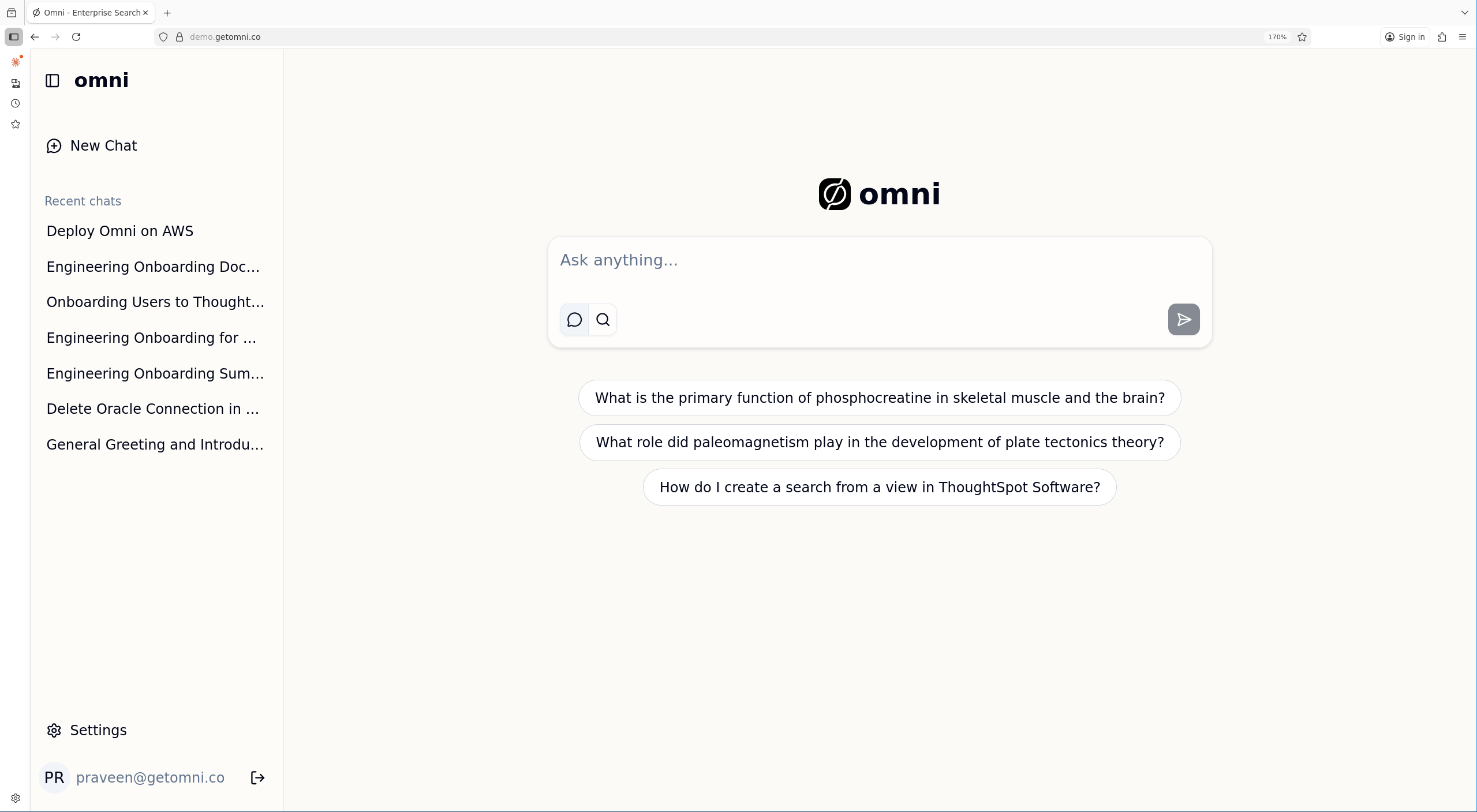
Type your query in the search bar. You can ask a question or enter keywords - Omni handles both.
 ## Search Results
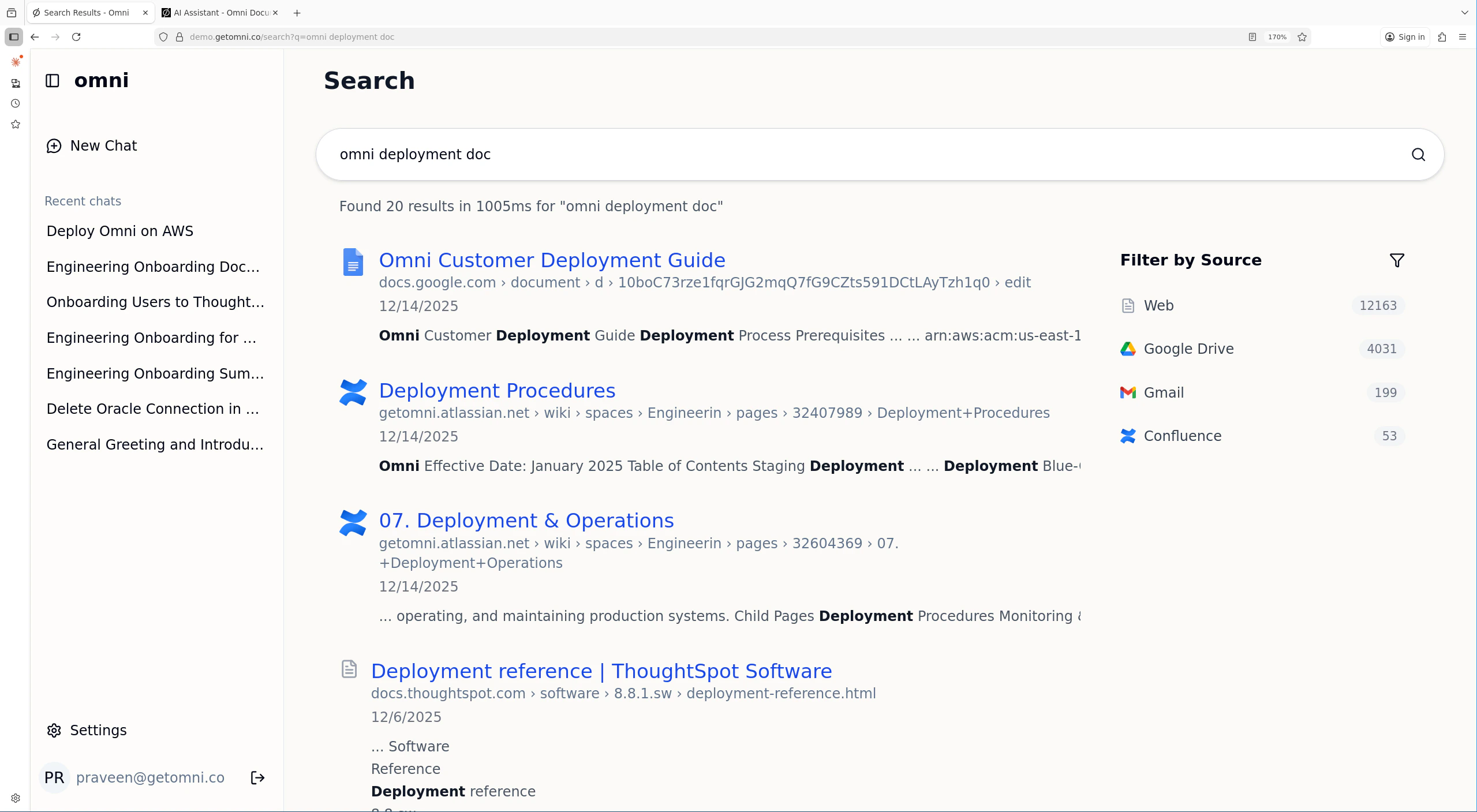
After submitting a query in Search mode, you'll see a list of matching documents ranked by relevance. Click any result to open the original document.
## Search Results
After submitting a query in Search mode, you'll see a list of matching documents ranked by relevance. Click any result to open the original document.
 ## Pagination
Search results are paginated for large result sets. Use the page navigation at the bottom of the results to browse through all matches.
## Search Operators
You can narrow a query inline using the following operators:
| Operator | Example | Meaning |
| --------- | -------------------------------- | --------------------------------------------------------------------- |
| `in:` | `quarterly plan in:slack` | Restrict to a specific source (slack, google, atlassian, notion, ...) |
| `type:` | `onboarding type:pdf` | Restrict to a content type (pdf, docx, spreadsheet, email, ...) |
| `by:` | `policy by:alice@acme.com` | Restrict to documents authored or sent by a specific user |
| `before:` | `roadmap before:2026-01-01` | Only documents last modified before the given date |
| `after:` | `release notes after:2025-12-01` | Only documents last modified on or after the given date |
Operators can be combined — for example, `onboarding in:google type:docx after:2025-09-01`.
Date operators are interpreted in your saved timezone from **Settings** → **Profile**. If you have not saved a timezone, Omni falls back to UTC.
Connectors can also add source-specific operators when they register with Omni. Examples include `channel:` for Slack, `folder:` or `subject:` for IMAP, `project:` / `status:` / `assignee:` for Jira and GitHub-style sources, and `tag:` / `correspondent:` for document-management connectors. These operators are available in both Search and Chat once the relevant connector is running.
## Filters
Filters in the search UI (source, type, author, date range) apply the same operators as above and are available from both Search and Chat modes.
## Multilingual Search
The search index uses ASCII folding and language-agnostic tokenization, so queries against documents in French, German, Spanish, and other non-English languages work without any extra configuration.
## Tips
* **Be specific**: "Engineering onboarding checklist" works better than "onboarding"
* **Ask naturally**: The AI understands conversational questions
* **Use operators**: Combine `in:`, `type:`, and `after:` to narrow results quickly
* **Use recent chats**: Continue previous conversations from the sidebar
* **Recency matters**: More recent documents are given a ranking boost, so up-to-date content surfaces first
## Pagination
Search results are paginated for large result sets. Use the page navigation at the bottom of the results to browse through all matches.
## Search Operators
You can narrow a query inline using the following operators:
| Operator | Example | Meaning |
| --------- | -------------------------------- | --------------------------------------------------------------------- |
| `in:` | `quarterly plan in:slack` | Restrict to a specific source (slack, google, atlassian, notion, ...) |
| `type:` | `onboarding type:pdf` | Restrict to a content type (pdf, docx, spreadsheet, email, ...) |
| `by:` | `policy by:alice@acme.com` | Restrict to documents authored or sent by a specific user |
| `before:` | `roadmap before:2026-01-01` | Only documents last modified before the given date |
| `after:` | `release notes after:2025-12-01` | Only documents last modified on or after the given date |
Operators can be combined — for example, `onboarding in:google type:docx after:2025-09-01`.
Date operators are interpreted in your saved timezone from **Settings** → **Profile**. If you have not saved a timezone, Omni falls back to UTC.
Connectors can also add source-specific operators when they register with Omni. Examples include `channel:` for Slack, `folder:` or `subject:` for IMAP, `project:` / `status:` / `assignee:` for Jira and GitHub-style sources, and `tag:` / `correspondent:` for document-management connectors. These operators are available in both Search and Chat once the relevant connector is running.
## Filters
Filters in the search UI (source, type, author, date range) apply the same operators as above and are available from both Search and Chat modes.
## Multilingual Search
The search index uses ASCII folding and language-agnostic tokenization, so queries against documents in French, German, Spanish, and other non-English languages work without any extra configuration.
## Tips
* **Be specific**: "Engineering onboarding checklist" works better than "onboarding"
* **Ask naturally**: The AI understands conversational questions
* **Use operators**: Combine `in:`, `type:`, and `after:` to narrow results quickly
* **Use recent chats**: Continue previous conversations from the sidebar
* **Recency matters**: More recent documents are given a ranking boost, so up-to-date content surfaces first