> ## Documentation Index
> Fetch the complete documentation index at: https://docs.getomni.co/llms.txt
> Use this file to discover all available pages before exploring further.
# AI Assistant
> Get answers synthesized from your organization's knowledge
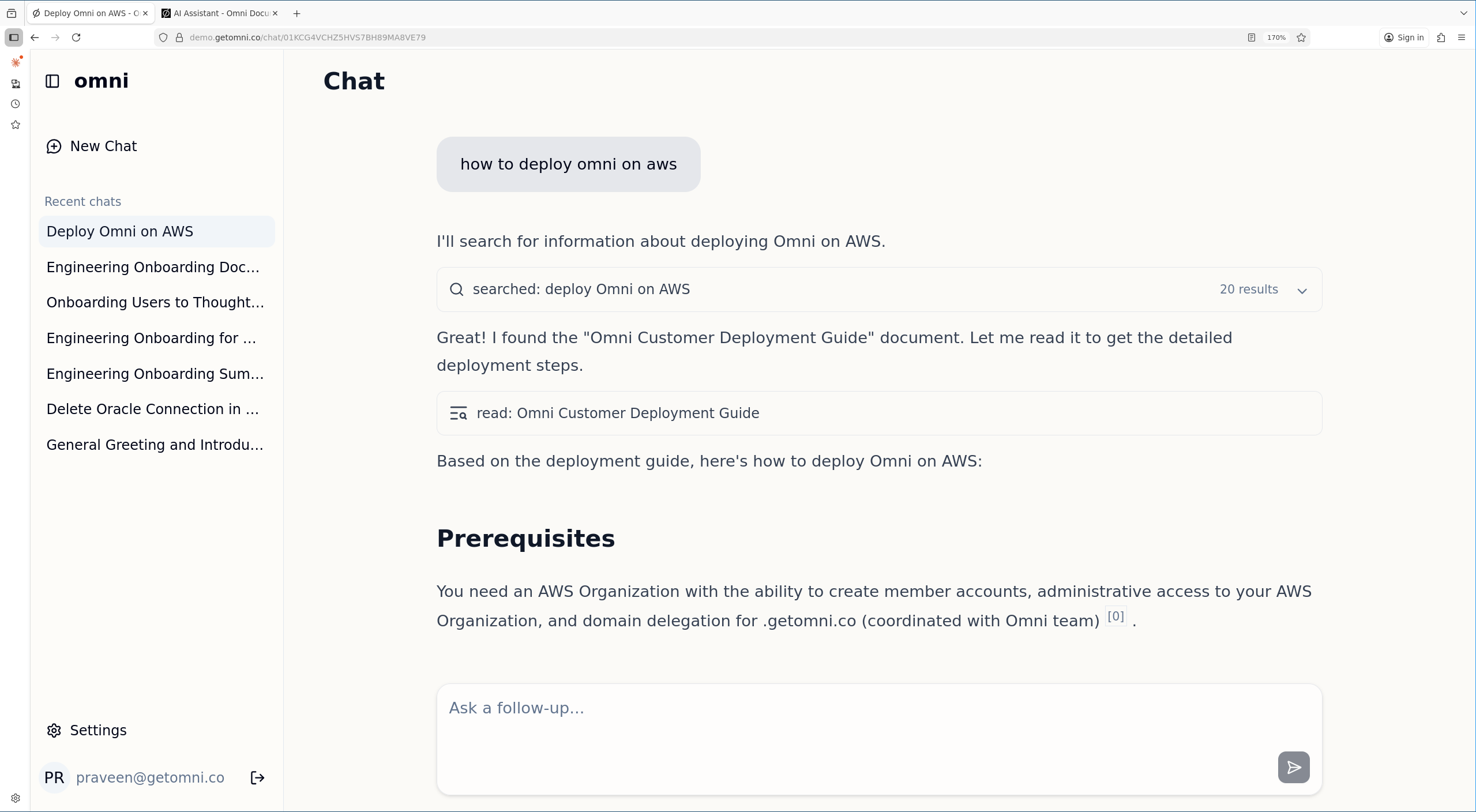 ## How It Works
In Chat mode, Omni's AI assistant:
1. Searches across all your connected sources
2. Synthesizes information into a coherent answer
3. Provides citations so you can verify the source
## Conversations
Each chat is saved in your **Recent chats** sidebar. Click any previous conversation to continue where you left off.
## Citations
Every AI response includes links to source documents with inline citation markers. Click citation chips to:
* Verify the information
* Read the full context
* Access the original document in its native application
Citation support works across all LLM providers. Anthropic and AWS Bedrock use native citation APIs; other providers use synthetic `[citation:n]` markers that are converted to the same inline chip format with hover excerpts and a dedicated Sources drawer.
## Conversation Branching
You can edit a previous message to explore a different direction. This creates a new **branch** in the conversation, preserving the original thread while letting you take a different path. Use the navigation arrows on messages to switch between branches.
## Retry Responses
If you're not satisfied with an AI response, click the **retry button** to regenerate it. The assistant will produce a new answer using the same context.
## Agent Tools
When you ask a question, the assistant may invoke one or more tools to gather information or take action. The current toolset is:
| Tool | Purpose |
| -------------------------------- | ------------------------------------------------------------------------------------------------------------------------------------------------------------------------------ |
| **search\_documents** | Search across all connected sources using filters like source, content type, author, and date |
| **read\_document** | Fetch the full text of a document by ID |
| **read\_file** / **write\_file** | Read and write files inside a per-chat workspace |
| **run\_bash** | Execute a bash command inside the `omni-sandbox` container |
| **run\_python** | Execute a Python snippet inside the `omni-sandbox` container |
| **send\_email** | Draft and send email (via the configured email provider) |
| **web\_search** | Search the public web using the admin-configured current search provider |
| **fetch\_web\_page** | Fetch readable content from a public HTTP(S) URL using the admin-configured current fetch provider |
| **Connector actions** | Source-specific actions exposed by connectors, such as exporting a Notion data source, reading from an MCP-backed connector, or invoking provider APIs with user authorization |
Any tool call that touches the outside world (running code, sending email, or a write-capable connector action) is gated by an **approval prompt** in the chat UI. You can approve or reject each request before it runs.
Web tools are available only after an admin configures providers in **Settings** → **Web Providers**. Web fetches are limited to public HTTP(S) URLs and respect the admin URL blocklist.
Some connector actions require your own OAuth authorization for the connected app. When that happens, Omni pauses the assistant loop and shows a **Connection required** card in chat. Click **Connect** to authorize the provider, then the assistant can continue with the action. If the admin has not configured the provider's OAuth app yet, the card explains that setup is required first.
## File Attachments
You can attach ad-hoc files directly to a chat message by clicking the attach button in the input area (or dragging a file onto the input). The assistant can read the attached file alongside indexed documents — useful for one-off questions about something that isn't connected to Omni as a source.
| Behavior | Details |
| -------------------------- | --------------------------------------------------------------------------------------------------------------------- |
| **Supported size** | Up to 50 MB per file |
| **Small text files** | Inlined directly into the chat context so the assistant sees the full content |
| **Larger or binary files** | Copied into the chat's sandbox workspace so the assistant can open them with `read_file`, `run_bash`, or `run_python` |
| **Reuse across chats** | Uploads are not pinned to a single chat — you can reference the same upload from any message in any chat |
Attachments are stored using the same content-storage backend as indexed documents (Postgres by default, or S3 if configured). They remain available until you delete them.
## Document References
You can reference specific indexed documents directly in a chat message by typing `@` followed by a search query. A typeahead menu shows matching documents from your connected sources — select one to inject its full content into the chat context alongside any documents the assistant retrieves on its own.
This is useful when you already know which document contains the answer and want the assistant to focus on it:
* "What does the onboarding checklist in `@employee-handbook` say about security training?"
* "Summarise the budget section from `@Q3-report`"
The referenced document content is injected into the model context, making it available alongside the assistant's own search results. Document references work across all connected sources — Google Drive, Confluence, Slack, Notion, and any other indexed content.
## People Search
The AI assistant can look up people in your organization. Ask about someone by name or email, and the assistant will return matching profiles.
Omni automatically builds a basic people directory from emails and names found in indexed documents. For richer profile data (job title, department, manager, etc.), enterprise IdP connectors are available — contact [hello@getomni.co](mailto:hello@getomni.co) for details.
## Memory
If your admin enables Memory, Omni can remember useful facts from prior chats and recall them in future conversations. Memory is scoped to your user account, and you can manage it from **Settings** → **Memory**.
| Mode | Details |
| --------------- | ----------------------------------------------------------------------------- |
| **Off** | Omni does not read or write memories for you |
| **Chat memory** | Omni can remember facts from completed chat turns and use them in later chats |
| **Full memory** | Chat memory plus agent run context when your organization allows it |
Your admin sets the organization-wide maximum memory mode. You can choose a lower personal mode or delete stored memories at any time.
## Skills
Skills are reusable Markdown instructions that guide the assistant through specific workflows. They ship with certain connectors (e.g. Google Drive and Gmail skills for the Google connector) and are automatically loaded when the connector is enabled.
You can also create your own skills from the **Skills** page in the sidebar. Write instructions in Markdown, set visibility to **Public** to share them with your organisation, or keep them **Private** for personal use. Browse and clone public skills created by other users in your organisation.
When the assistant encounters a relevant task, it searches available skills and applies matching ones to guide its response.
## Best Practices
* **Ask follow-up questions** - The assistant remembers context within a conversation
* **Be specific** - "What's our PTO policy for employees in California?" beats "PTO policy"
* **Request formats** - Ask for bullet points, tables, or summaries as needed
## How It Works
In Chat mode, Omni's AI assistant:
1. Searches across all your connected sources
2. Synthesizes information into a coherent answer
3. Provides citations so you can verify the source
## Conversations
Each chat is saved in your **Recent chats** sidebar. Click any previous conversation to continue where you left off.
## Citations
Every AI response includes links to source documents with inline citation markers. Click citation chips to:
* Verify the information
* Read the full context
* Access the original document in its native application
Citation support works across all LLM providers. Anthropic and AWS Bedrock use native citation APIs; other providers use synthetic `[citation:n]` markers that are converted to the same inline chip format with hover excerpts and a dedicated Sources drawer.
## Conversation Branching
You can edit a previous message to explore a different direction. This creates a new **branch** in the conversation, preserving the original thread while letting you take a different path. Use the navigation arrows on messages to switch between branches.
## Retry Responses
If you're not satisfied with an AI response, click the **retry button** to regenerate it. The assistant will produce a new answer using the same context.
## Agent Tools
When you ask a question, the assistant may invoke one or more tools to gather information or take action. The current toolset is:
| Tool | Purpose |
| -------------------------------- | ------------------------------------------------------------------------------------------------------------------------------------------------------------------------------ |
| **search\_documents** | Search across all connected sources using filters like source, content type, author, and date |
| **read\_document** | Fetch the full text of a document by ID |
| **read\_file** / **write\_file** | Read and write files inside a per-chat workspace |
| **run\_bash** | Execute a bash command inside the `omni-sandbox` container |
| **run\_python** | Execute a Python snippet inside the `omni-sandbox` container |
| **send\_email** | Draft and send email (via the configured email provider) |
| **web\_search** | Search the public web using the admin-configured current search provider |
| **fetch\_web\_page** | Fetch readable content from a public HTTP(S) URL using the admin-configured current fetch provider |
| **Connector actions** | Source-specific actions exposed by connectors, such as exporting a Notion data source, reading from an MCP-backed connector, or invoking provider APIs with user authorization |
Any tool call that touches the outside world (running code, sending email, or a write-capable connector action) is gated by an **approval prompt** in the chat UI. You can approve or reject each request before it runs.
Web tools are available only after an admin configures providers in **Settings** → **Web Providers**. Web fetches are limited to public HTTP(S) URLs and respect the admin URL blocklist.
Some connector actions require your own OAuth authorization for the connected app. When that happens, Omni pauses the assistant loop and shows a **Connection required** card in chat. Click **Connect** to authorize the provider, then the assistant can continue with the action. If the admin has not configured the provider's OAuth app yet, the card explains that setup is required first.
## File Attachments
You can attach ad-hoc files directly to a chat message by clicking the attach button in the input area (or dragging a file onto the input). The assistant can read the attached file alongside indexed documents — useful for one-off questions about something that isn't connected to Omni as a source.
| Behavior | Details |
| -------------------------- | --------------------------------------------------------------------------------------------------------------------- |
| **Supported size** | Up to 50 MB per file |
| **Small text files** | Inlined directly into the chat context so the assistant sees the full content |
| **Larger or binary files** | Copied into the chat's sandbox workspace so the assistant can open them with `read_file`, `run_bash`, or `run_python` |
| **Reuse across chats** | Uploads are not pinned to a single chat — you can reference the same upload from any message in any chat |
Attachments are stored using the same content-storage backend as indexed documents (Postgres by default, or S3 if configured). They remain available until you delete them.
## Document References
You can reference specific indexed documents directly in a chat message by typing `@` followed by a search query. A typeahead menu shows matching documents from your connected sources — select one to inject its full content into the chat context alongside any documents the assistant retrieves on its own.
This is useful when you already know which document contains the answer and want the assistant to focus on it:
* "What does the onboarding checklist in `@employee-handbook` say about security training?"
* "Summarise the budget section from `@Q3-report`"
The referenced document content is injected into the model context, making it available alongside the assistant's own search results. Document references work across all connected sources — Google Drive, Confluence, Slack, Notion, and any other indexed content.
## People Search
The AI assistant can look up people in your organization. Ask about someone by name or email, and the assistant will return matching profiles.
Omni automatically builds a basic people directory from emails and names found in indexed documents. For richer profile data (job title, department, manager, etc.), enterprise IdP connectors are available — contact [hello@getomni.co](mailto:hello@getomni.co) for details.
## Memory
If your admin enables Memory, Omni can remember useful facts from prior chats and recall them in future conversations. Memory is scoped to your user account, and you can manage it from **Settings** → **Memory**.
| Mode | Details |
| --------------- | ----------------------------------------------------------------------------- |
| **Off** | Omni does not read or write memories for you |
| **Chat memory** | Omni can remember facts from completed chat turns and use them in later chats |
| **Full memory** | Chat memory plus agent run context when your organization allows it |
Your admin sets the organization-wide maximum memory mode. You can choose a lower personal mode or delete stored memories at any time.
## Skills
Skills are reusable Markdown instructions that guide the assistant through specific workflows. They ship with certain connectors (e.g. Google Drive and Gmail skills for the Google connector) and are automatically loaded when the connector is enabled.
You can also create your own skills from the **Skills** page in the sidebar. Write instructions in Markdown, set visibility to **Public** to share them with your organisation, or keep them **Private** for personal use. Browse and clone public skills created by other users in your organisation.
When the assistant encounters a relevant task, it searches available skills and applies matching ones to guide its response.
## Best Practices
* **Ask follow-up questions** - The assistant remembers context within a conversation
* **Be specific** - "What's our PTO policy for employees in California?" beats "PTO policy"
* **Request formats** - Ask for bullet points, tables, or summaries as needed